


So, you’ve downloaded the Delta Force: Hawk Ops Global Test, hyped for some intense firefights, but instead, you’re getting a slideshow of performance issues and frustrating lag spikes? We feel your pain. Since the PC test went live, countless players have been searching for a reliable Delta Force stuttering fix, and you’re not alone in this fight.
The good news is that most of these distracting FPS drops and lag issues are solvable. This isn’t just about tweaking one setting; it’s about a systematic approach. This guide provides a complete, step-by-step checklist to help you troubleshoot performance issues and finally enjoy the smooth gameplay you were promised.
A. Essential Steps for Your Delta Force Stuttering Fix
Before diving into complex tweaks, let’s start with the basics. These two steps are often the most effective solution and should be your first line of defense against poor game performance.
1. Update Your Graphics Drivers (The Non-Negotiable First Step)
We can’t stress this enough: update your GPU drivers. Think of it like this: Delta Force is a brand-new game speaking a new language, and your graphics card needs the latest dictionary (the driver) to understand it properly. Outdated drivers are the #1 cause of FPS drops in Delta Force and other new releases. An update often contains specific optimizations that can dramatically improve stability.
- NVIDIA Users: Download Latest GeForce Drivers
- AMD Users: Download Latest Radeon Drivers
[Quote] “Updating drivers is the most crucial fix for new games experiencing performance issues. It’s the foundation for a stable experience.”
2. Optimize In-Game Graphics Settings for Peak Performance
Driver updated? Great. Now, let’s dive into the in-game settings. Your goal here is to sacrifice some unnecessary eye candy for a massive boost in smooth, responsive gameplay. A proper settings configuration is a key part of any successful Delta Force stuttering fix. We’ve tested these settings to give you the best competitive advantage without making the game look like a potato.
| Setting | Recommended Value | Reason for the Tweak |
| Display Mode | Fullscreen | Ensures the game has exclusive control of your screen. |
| VSync | Off | Reduces input lag, which is critical for FPS games. |
| DLSS / FSR | Performance or Ultra Performance | The single biggest FPS booster for supported cards. |
| Shadows | Medium or Low | Shadows are notoriously demanding on your GPU. |
| Texture Quality | Medium (adjust to your VRAM) | Balances visual clarity without overloading your VRAM. |
| Anti-Aliasing | Low / TAA | Smooths edges with a lower performance cost. |
| Post-Processing | OFF (Motion Blur, Bloom, etc.) | These effects look cinematic but are common causes of stutter. |
B. Windows & System Tweaks to Reduce Delta Force Lag
If the essential fixes weren’t enough, it’s time to optimize how your operating system handles the game. These tweaks ensure Windows is dedicating maximum resources to your gameplay, a crucial step for a complete Delta Force stuttering fix.
3. Enable Windows Game Mode & HAGS
Windows has built-in features to help games run better. First, enable Game Mode by opening Start > Settings > Gaming > Game Mode and turning it ON. Next, enable Hardware-Accelerated GPU Scheduling (HAGS) by navigating to Settings > System > Display > Graphics Settings. This combination can free up system resources and reduce input latency.
Read Also:
- Your Favorite MLBB Assassin is USELESS in Europe’s Pro Scene. Here’s Why.
- The Lethal Company Phenomenon: An Anatomy of a Viral Hit
- The True Cost of a Maxed-Out Character in Genshin Impact: A Financial Report
4. Close Unnecessary Background Applications
Before you launch the game, it’s time to close the usual suspects. Yes, we’re talking about those 20 Chrome tabs, the flashy Discord overlay, and that cool animated wallpaper. They are notorious FPS killers, silently eating up your PC’s resources in the background and contributing to Delta Force lag spikes.
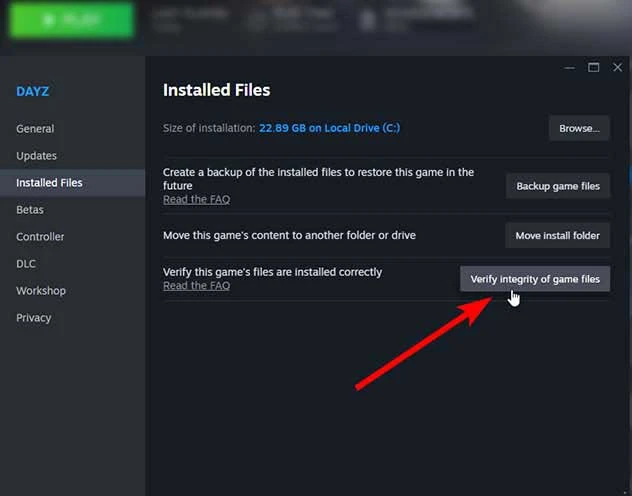
5. Verify Integrity of Game Files
Crashes and bizarre bugs can sometimes be traced back to corrupted game files from a faulty download. Verifying the files is an easy way to rule this out. In your game launcher (like Steam), right-click the game, go to Properties > Installed Files, and click “Verify integrity of game files.” This will check for and redownload any broken files.
C. Understanding the Root of the Problem
Sometimes, the best fix is understanding the context. Not every issue is on your end, especially when dealing with a game in a pre-release state.
6. Remember: It’s a Beta Test, Not a Final Game
It’s important to remember that you are playing a Global Test, not the final, polished release. Performance hiccups and bugs are expected. The developers are actively using this phase to gather data on various PC configurations to improve stability for the official launch.
7. Know the Difference: Server Lag vs. Client-Side Stutter
Are you experiencing lag or stutter? Knowing the difference will save you a lot of headaches.
- Server Lag: This manifests as enemies teleporting or shots not registering. It’s a connection issue between you and the game server and is not fixable on your end.
- Stutter / FPS Drops: This feels like your screen is freezing or gameplay is choppy, especially when turning quickly. This is a performance issue on your PC and is fixable with the steps above.
8. The Curious Case of Shader Compilation Stutter
Modern games often build a “shader cache” while you play. This means the very first time you enter a new map or see a new visual effect, your game might stutter for a moment. The good news is that this is usually a one-time issue, as the game smooths out after a few matches on the same maps.
[Quote] “Sometimes, the best fix for stutter is simply playing more — shaders often stabilize after a few runs.”
Conclusion: Your Action Plan for a Lag-Free Experience
Dealing with performance problems in a new game can be incredibly frustrating, but a methodical approach is the key to a successful Delta Force stuttering fix. If you want the fastest results, focus on these three critical steps:
- Update GPU Drivers to the latest version.
- Switch to Fullscreen mode and ensure VSync is Off.
- Drop Shadows and Post-Processing to Low or Off.
These three tweaks alone solve stuttering and Delta Force lag for the vast majority of players. While the game is still in a test phase, the optimizations outlined in this guide will ensure your PC is fully prepared to run it as smoothly as possible. Now go get back in the fight
What about you — have you found other tweaks that worked for your setup? Drop your own fixes in the comments and help the community out!


